Getting Started: Risk Scoring Module
Last updated: February 27, 2026
Risk Scoring
Overview
The Risk Scoring feature allows you to define rules and thresholds that automatically calculate a risk score for each business profile. Based on the total accumulated score, each profile is classified into a risk level — helping your team make faster, more consistent decisions during onboarding and ongoing monitoring.
Risk Levels
Risk levels are determined by the total risk score accumulated across all triggered rules. The score ranges from 0 to 100.
Level | Score | Colour |
Low | Configurable | Green |
Medium | Configurable | Yellow |
High | Configurable | Red/Orange |
Prohibited | 100 (fixed) | Dark Red |
Configuring Risk Level Thresholds

The boundaries between Low, Medium, and High are fully adjustable using the dual-handle slider on the Risk Scoring tab. Drag the handles to reposition the thresholds to match your organisation's risk appetite. Once set, click Update Risk Levels to save.
Note: A score of exactly 100 always maps to Prohibited, regardless of slider position. This is a fixed tier and cannot be repositioned.
Configuring Risk Rules
Rules are the building blocks of your risk scoring logic. Each rule evaluates one or more conditions against a business profile's data. When conditions are met, the rule contributes a score (or triggers a decision) for that profile.


Adding a Rule
Click + Add Rule to open the rule editor. Rules can be configured in two ways:
Visual Editor — a form-based interface for building rules without writing code.
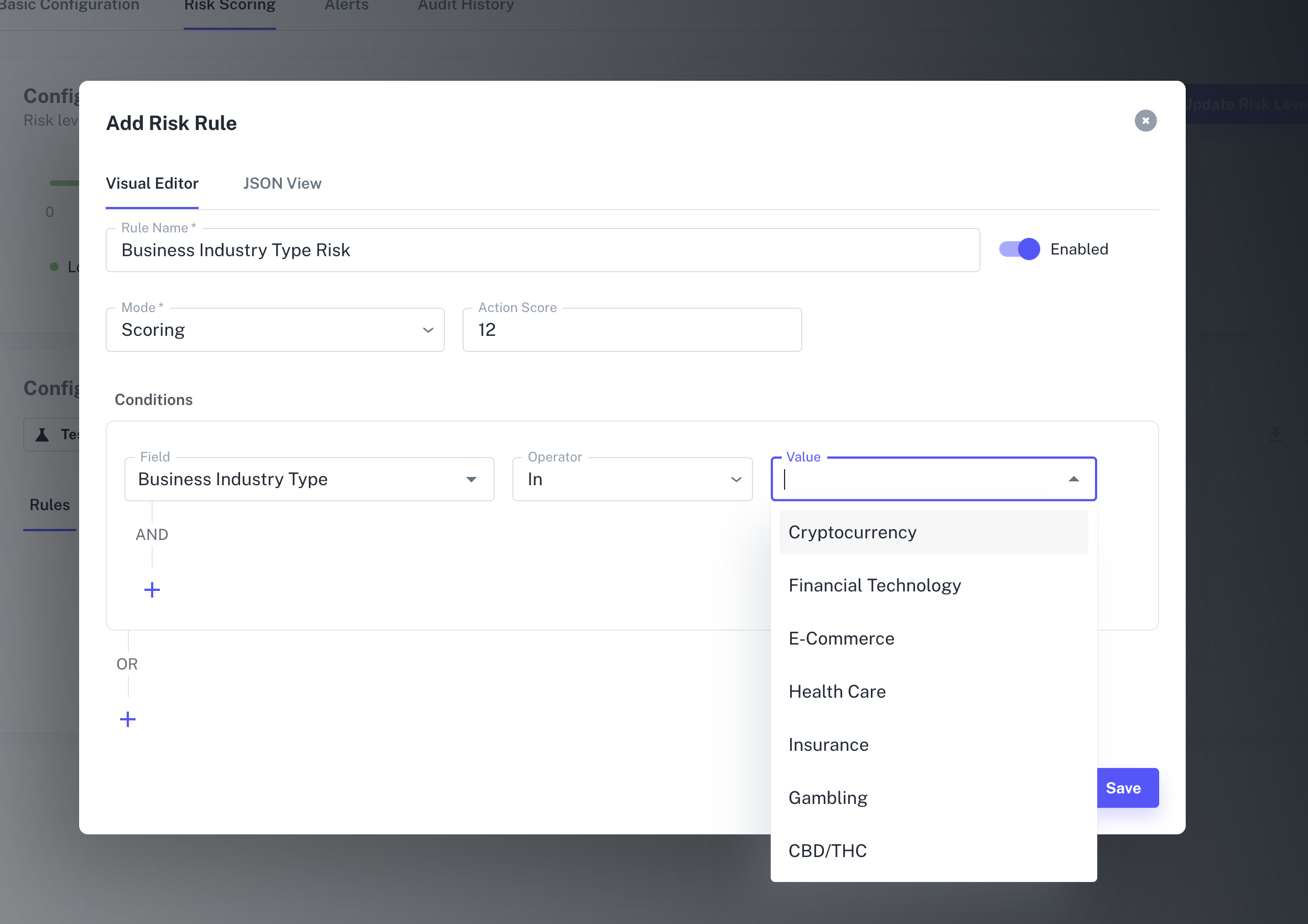
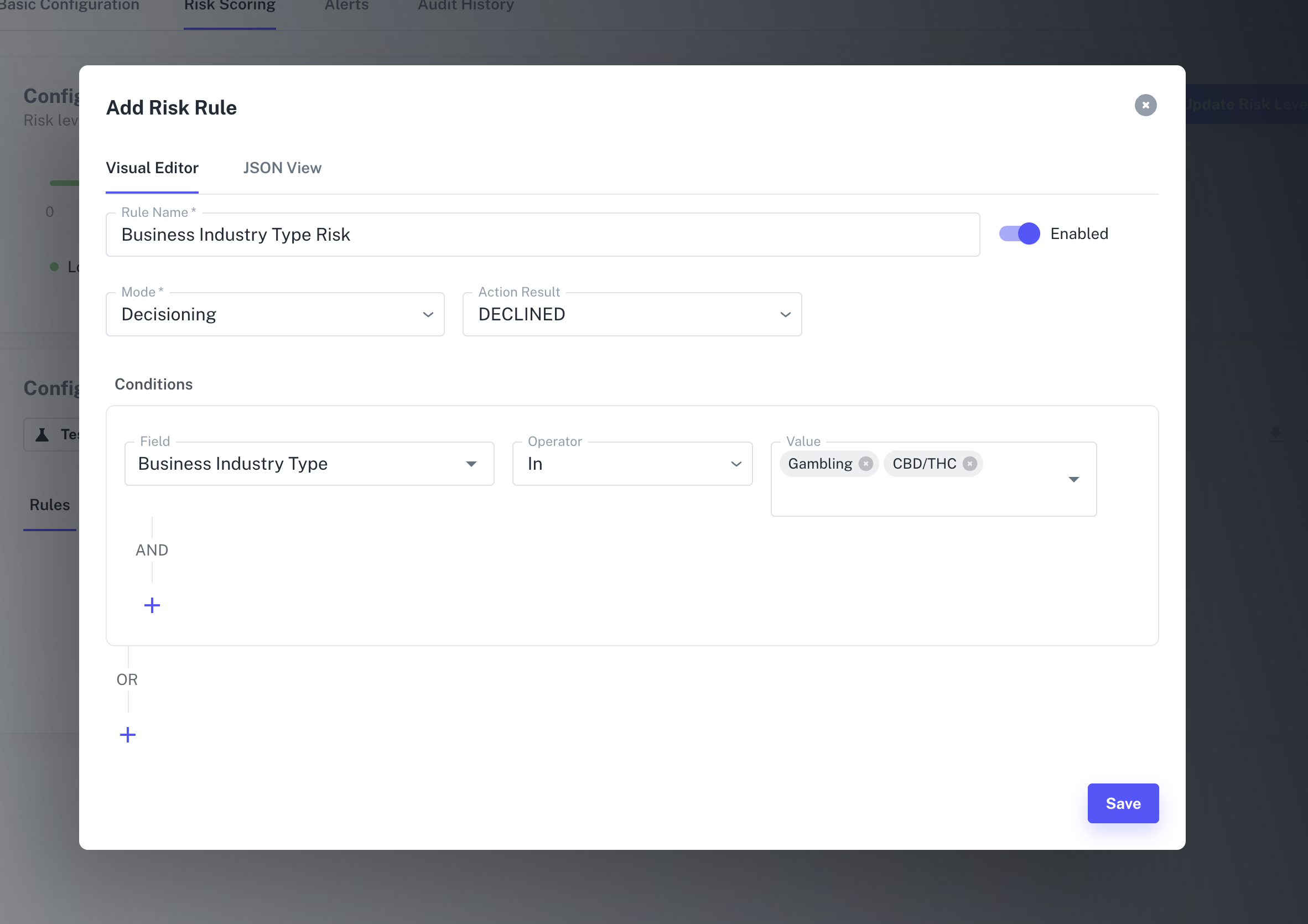
JSON View — directly edit the raw JSON for advanced use cases or bulk editing. Click Apply JSON to push your changes back to the visual form. The JSON structure looks like this:
{
  "rule_name": "My Rule",
  "mode": "SCORING",
  "enabled": true,
  "rule_group": [
    [
      {
        "field": "",
        "operator": "",
        "value": ""
      }
    ]
  ],
  "action_score": 25
}
Rule Fields
FieldDescription | |
Rule Name | A descriptive label for the rule. |
Mode | Either |
Action Score | The score added to the total when the rule's conditions are met (Scoring mode only). |
Action Result | The KYC/KYB case decision when the rule's conditions are met (Decisioning mode only). |
Enabled | Toggle to activate or deactivate the rule without deleting it. |
Conditions
Each rule has one or more conditions. Conditions follow a Field → Operator → Value structure. Multiple conditions within a group are combined with AND logic. You can add additional condition groups with OR logic to create more flexible matching.
You can also use Use Dynamic Value to reference another field's value rather than a fixed literal.
Available Fields
Fields are drawn from the verified data attributes of a business profile, grouped by category:
- Client Reference Data — Client reference ID, client reference data
- Business Data — Business input name, alternate name, entity ID, addresses, phone numbers, email addresses
- Business Info — Status, result, addresses, website, Tax ID, business ID, country code
- Question — Custom questions configured on the KYC/KYB templates
- Business Scope — Description, activities
- Related Persons / Related Companies
- Website Info — Domain creation/expiration dates, backlinks, social media profiles, industry inconsistencies, adverse media, hosting provider, WHOIS privacy mode, DNS/NS status, SSL validity, parked status
- Website Content — Emails, addresses, policy analysis, placeholder text, inconsistencies, stock images, dead links, authenticity signals
- Social Media — Facebook (exists, followers count, is business account), LinkedIn (exists, followers count)
- Events
- Fraud Insights — Email insights, phone insights, related sessions
- IP Insights — Status, result, warnings, host, proxy, Tor, VPN, active Tor, recent abuse, bot status, abuse velocity
- Device Insights — User agent, incognito, bot status, bot type, privacy settings
- Additional Info — Business additional information, and other custom fields (e.g., related_persons, related_companies, website_info, events, lookup_info, aml_info, fraud_insights, business_additional_information)
For detailed information on all available fields and the full data schema, please refer to:
Rule Collections
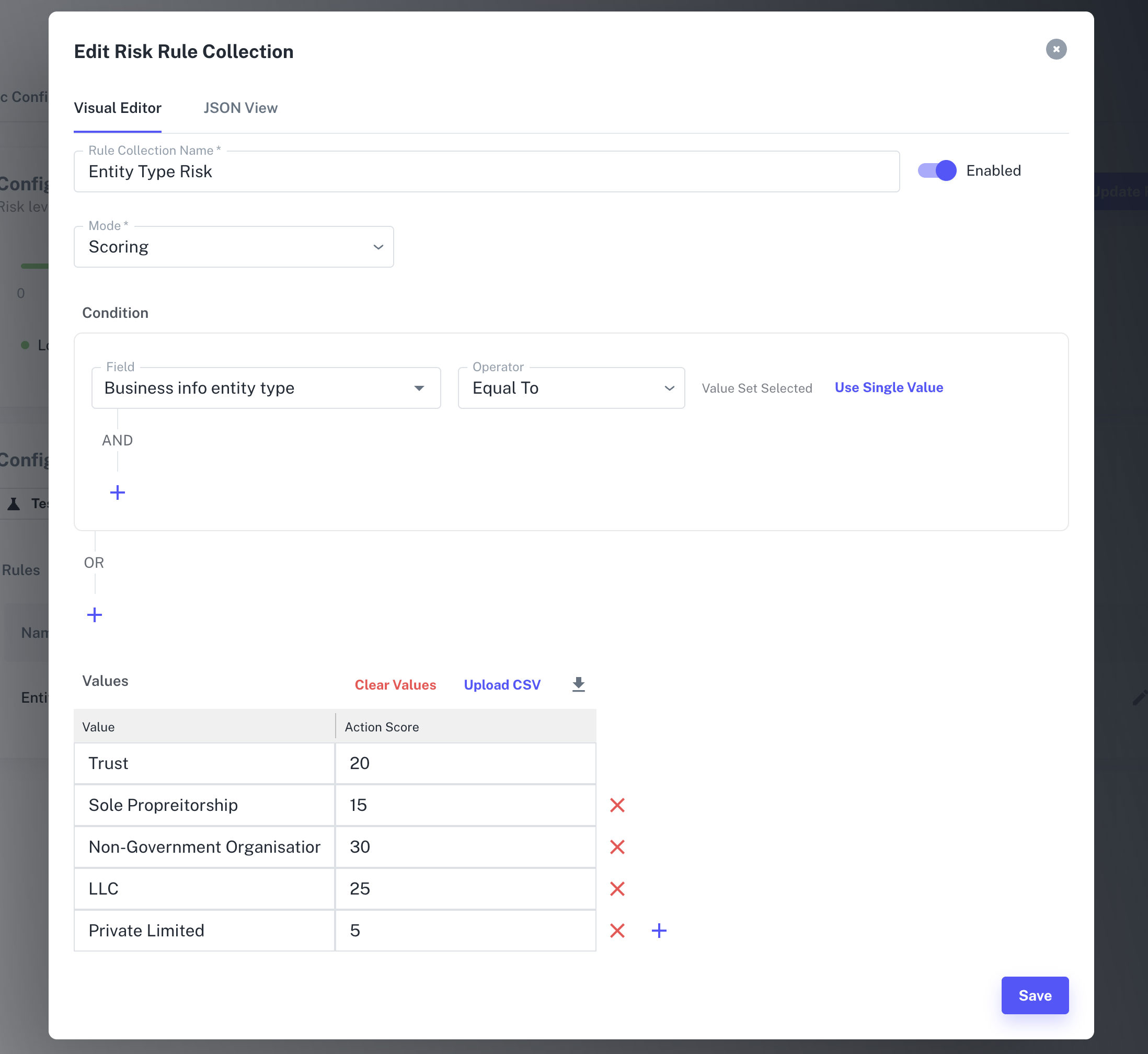
Rule Collections offer a more powerful variant of rules designed for lookup-table style scoring. Instead of a single action score, a collection maps a list of field values to individual scores — useful when different values of the same field carry different risk weights (e.g., different country codes each scoring differently).
### Creating a Rule Collection
Click + Add Rule Collection. The setup is similar to a standard rule but includes a Values table with two columns:
- Value — the specific field value to match
- Action Score — the score to apply when that value is matched
You can populate the table manually or Upload CSV to bulk-import value/score pairs. The collection supports the same AND/OR condition logic and the Use Dynamic Value / Add Value Set options for advanced configurations.
Creating a Rule Collection
Click + Add Rule Collection. The setup is similar to a standard rule but includes a Values table with two columns:
ColumnDescription | |
Value | The specific field value to match. |
Action Score | The score to apply when that value is matched. |
You can populate the table manually or click Upload CSV to bulk-import value/score pairs. The collection supports the same AND/OR condition logic and the Use Dynamic Value / Add Value Set options for advanced configurations.
Rule Library
Click Pick From Library to browse pre-built rule templates organised by category:
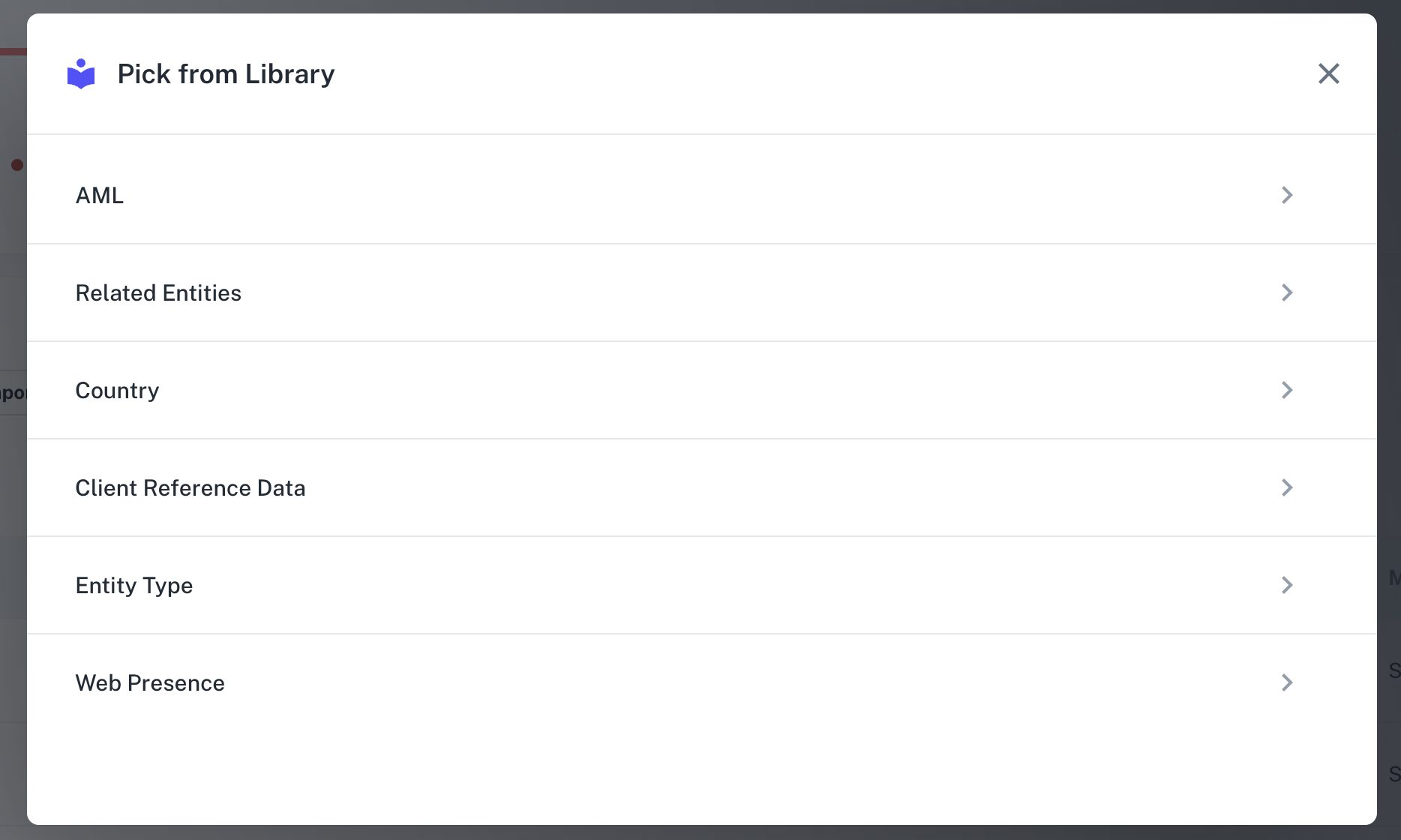
AML — Rules based on AML screening results, including hit types (PEP, PEP Class 1–4, Adverse Media subtypes, Sanction, Warning, Fitness & Probity, Criminal Record, Legal Background, Unknown) and relevance score thresholds.
Related Entities — Rules based on associated persons or companies.
Country — Country-based risk scoring.
Client Reference Data — Rules driven by your own reference identifiers.
Entity Type — Rules based on business entity classification.
Web Presence — Rules evaluating a business's online footprint.
Each template comes pre-populated with a suggested rule name, mode, and score. You can customise any field before adding it to your configuration.
Importing Questions
The Import Questions button allows you to bring in question-based rules from your KYC/KYB template. Select the source template from the dropdown and click Save to import its questions as rules into the current template.
Exporting and Importing Rules
Two icon buttons in the top-right of the Configure Risk Rules section allow you to manage rules in bulk:
Export Rules (download icon) — Downloads your current rules configuration as a file for backup or sharing.
Import Rules (upload icon) — Upload a previously exported rules file to restore or copy a rule set into this template.
Testing Risk Rules
Once rules are configured, use Test Risk Rules to simulate how scoring would behave against real existing business profiles — without affecting any live data.
Click Test Risk Rules.
Toggle Sandbox on or off depending on whether you want to test against sandbox or production profiles.
Enter one or more Profile IDs (comma-separated).
Click Test Rules to run the simulation and preview the resulting scores and decisions.
This is particularly useful before activating a new rule set, or when tuning thresholds after observing unexpected risk classifications.
Rule Modes: Scoring vs. Decisioning
Scoring mode is additive — each triggered rule contributes its action score to the profile's running total. The final total determines the risk level tier.
Decisioning mode works differently — it applies a direct outcome (such as approve or reject) rather than contributing to a numeric score. Use this when a specific condition should result in an absolute decision regardless of the overall score.