How to bulk upload answers via a CSV for a questionnaire
Last updated: March 26, 2025
Creating KYB questionnaires often involves questions with multiple-choice options, such as selecting an industry, type of business and so on. Manually adding dozens of options can be time-consuming. This guide shows you how to simplify the process by uploading a CSV file to auto-populate your answer options.
Here’s a quick Loom video walkthrough if you prefer a visual guide.
 Steps to Upload a CSV for Answer Options
Go to the Business Question Module Group
Create a New Question
Click on Add Question.
Enter your question text. Example: "What industry do you operate in?"
Mark the question as mandatory if needed.
Configure the Answer Type
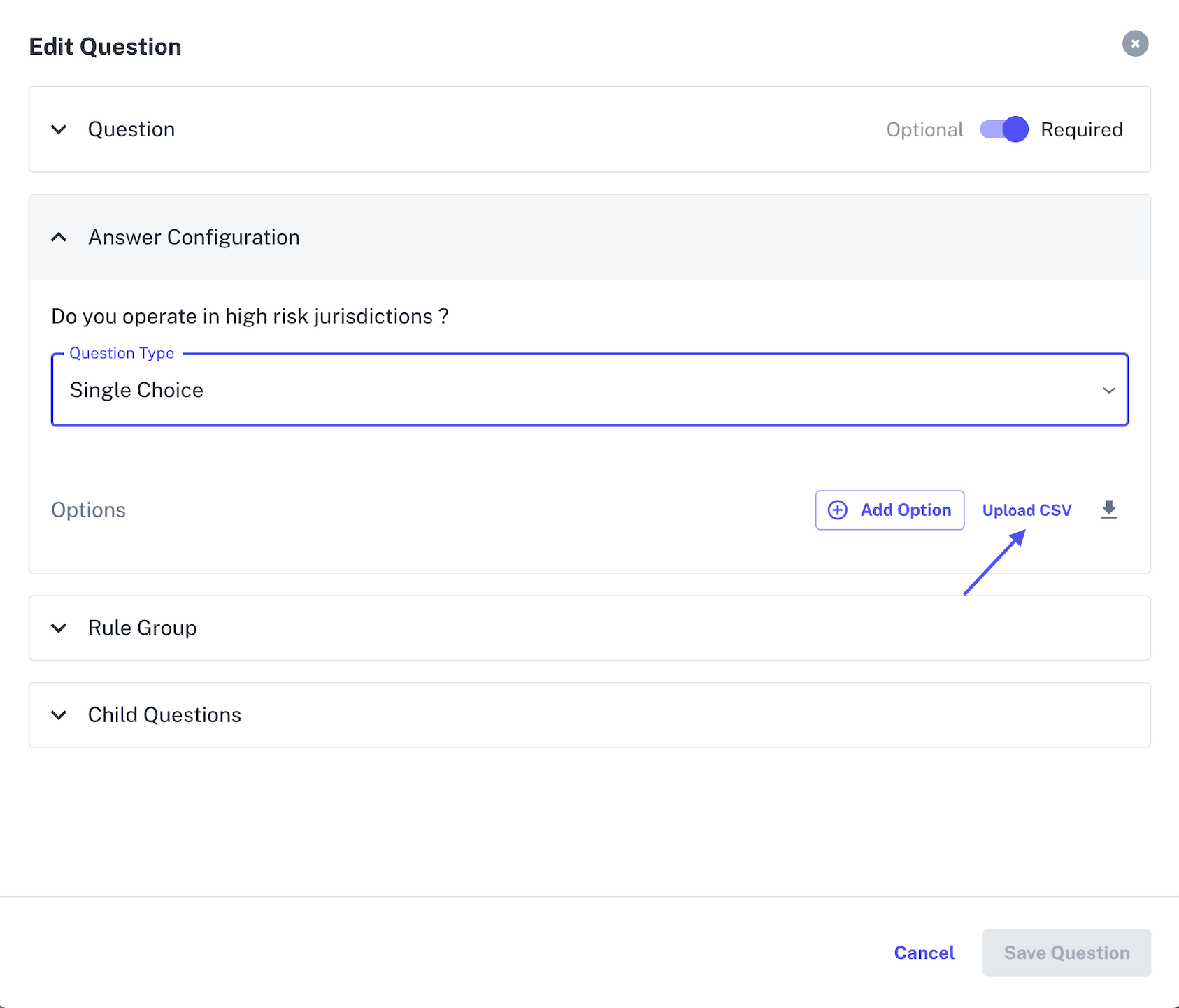
In the Answer Configuration section, choose an answer type such as Single Choice or Multi Choice.
Upload a CSV File
Click on Upload CSV.
If you're unsure of the format, download the Sample CSV template provided.
Prepare your CSV file using the template.
Upload the file.
Review Your Options
Once uploaded, all options from the CSV will automatically appear as selectable answers.
This saves time and avoids manual data entry errors.
Save the Question
Click Save to finalise the question and its answer choices.