Requesting additional documents from a verified user via the AiPrise dashboard
Last updated: March 19, 2025
This guide walks you through the process of requesting extra ID documents using the AiPrise dashboard. You can also click here to watch a quick walkthrough video.
Step-by-Step Guide
Create a User Profile
Navigate to User Profiles on your AiPrise dashboard.
Click on Create User Profile.
Enter the user's details (e.g., Name: Martin Smith).
Add any additional details if required and click Save.

Link the User's Existing Verification Session
Go to Case Management.
Locate the existing session used to verify the user.
Copy the Session ID.
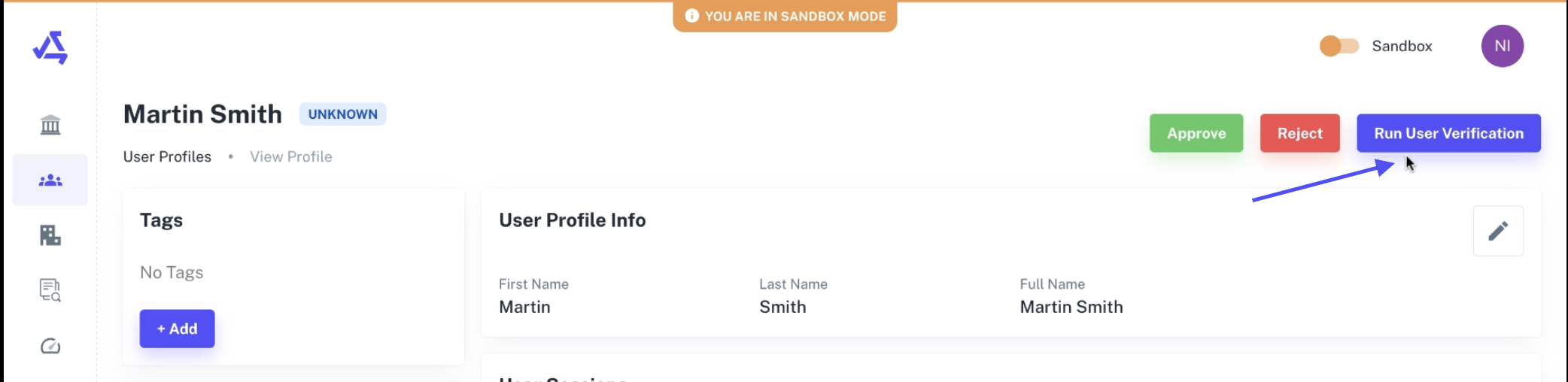
Head back to User Profiles and open the created profile.
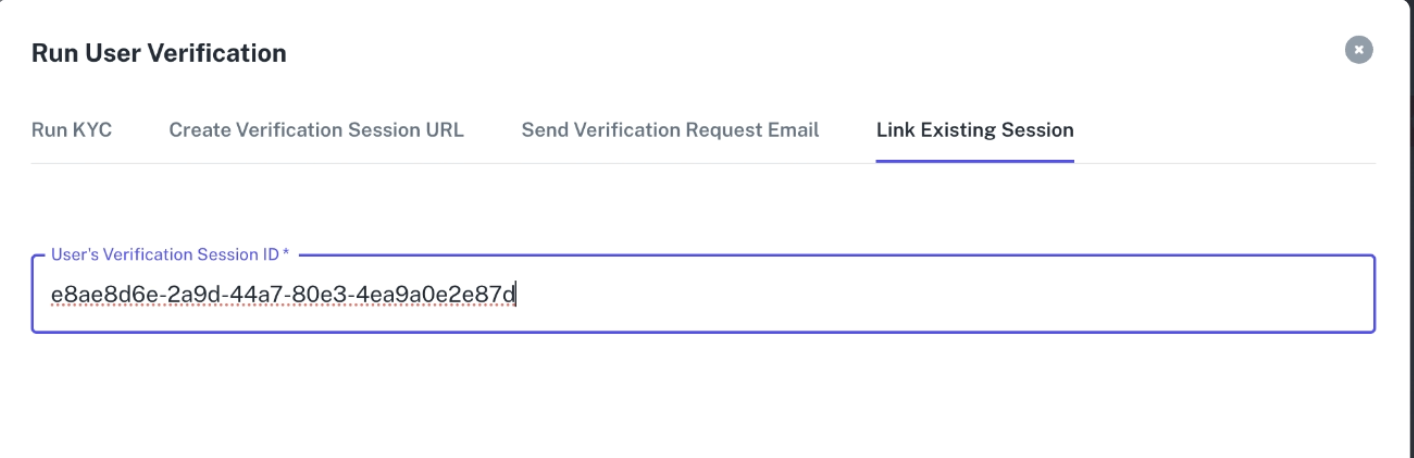
Click on Run User Verification and paste the copied Session ID to link the session.
Request Additional Documents
In the User Profile, click on Run User Verification again.
Select a verification mode (e.g., Email Verification).
Choose the type of additional check needed (e.g., Background Check).
Enter the user's email (e.g.,
martinsmith@gmail.com).Click Send Email to request verification.
Monitor the Verification Status
Once the user completes verification, a new session will appear in the User Profile.
You can track and conduct multiple verification sessions as needed.
For further assistance, feel free to contact our support team.
Happy Verifying!