Queues FAQ
Last updated: September 2, 2026
What is Queues?
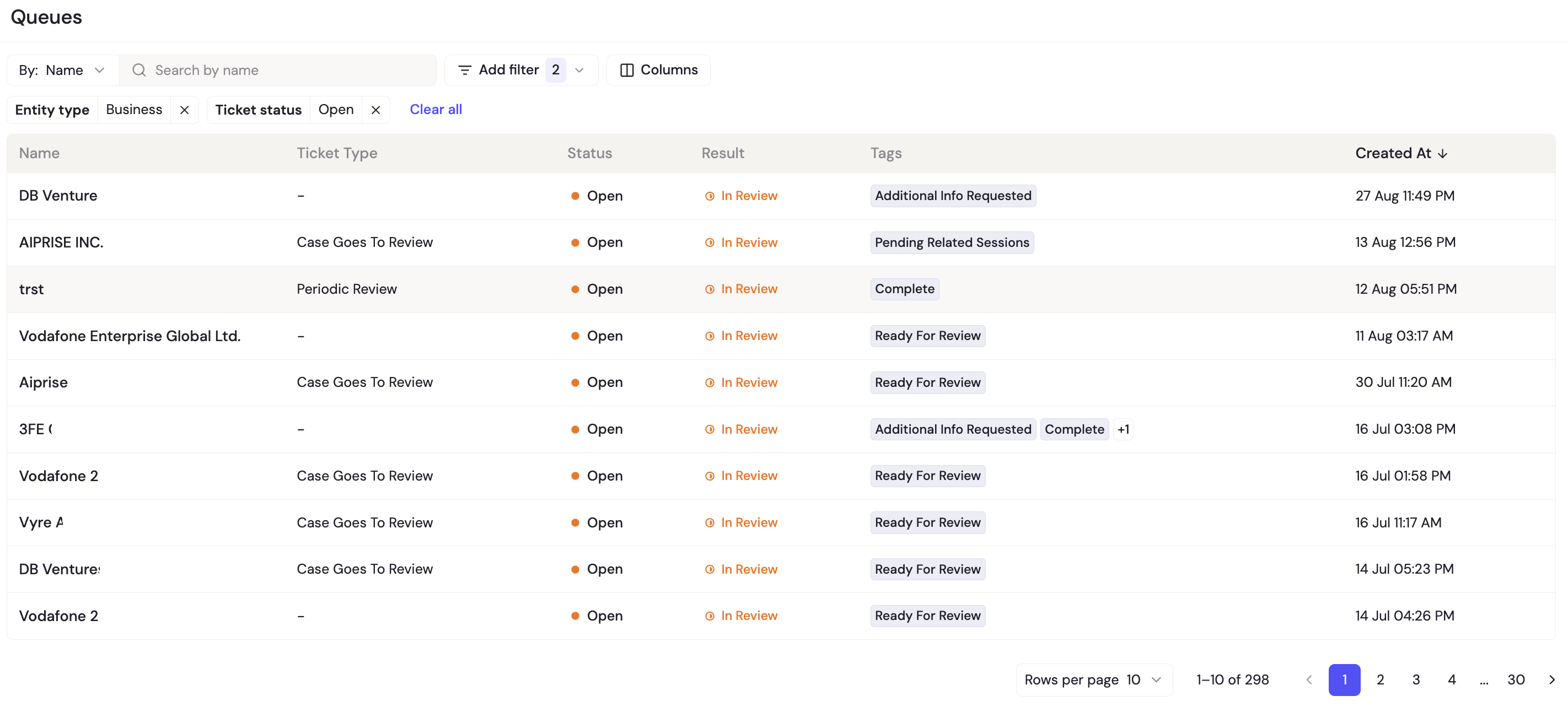
Queues is your central workspace for all tickets assigned to you. It shows user sessions, user profiles, and business profile tickets in a single view.
Where do I find Queues?
In the left navigation, below Case Management.
What does one row represent?
Each row is one ticket. If a single case has multiple tickets (for example, an AML alert and a document expiry), each ticket appears as its own row.
What do I see when I open Queues?
You land on the "My Tickets" view, which shows all open tickets assigned to you. From here, you can click any ticket to open it and start reviewing.
What are some upcoming feature expected on Queues?
We are launching the functionality of "Views" and bulk assignment in the upcoming weeks.
What views are available?
Queues comes with pre-built view that we are launching soon:
View | What it shows |
|---|---|
My Tickets | Open tickets assigned to you |
Open Tickets | All open tickets across the team |
AML Monitoring Tickets | Tickets triggered by AML monitoring alerts |
ID Expiry Tickets | Tickets triggered by expired IDs |
Document Expiry Tickets | Tickets triggered by expired documents |
Periodic Review Tickets | Tickets triggered by periodic reviews |
Website Monitoring Tickets | Tickets triggered by website monitoring updates |
Can I create my own views?
Yes. We are launching the Views functionality very soon. Apply any combination of filters and columns, then click "Save as new view" to save it for quick access later. Your personal views are visible only to you.
Can I share views with my team?
Admins can create shared views that are visible to all users on the account. Non-admin users can use shared views but cannot edit them. To make your own changes, save a personal copy using "Save as new view."
What is focus mode?
When you click on a ticket from the list, the case opens in a focused review experience. You see the full case detail with approve, reject, and resolve actions. After you take an action, the system automatically advances to the next ticket in your list. Resolved tickets are automatically skipped.
How do I navigate between tickets in focus mode?
Use the Previous and Next buttons in the top bar. The counter (e.g., "3 / 47") shows your current position. You can also open the side panel to jump to a specific ticket.
How do I exit focus mode?
Click the exit button in the top bar to return to the list view.
Can I reassign a ticket to someone else?
Yes. Click the reassign icon on any ticket row to reassign it individually. Or select multiple tickets using the checkboxes and click "Reassign Selected" to reassign in bulk.
Does "Select all" select all my tickets?
It selects all tickets on the current page. To act on more tickets, repeat on subsequent pages.
Where did queue configuration (Manage Queues) go?
Queue configuration has moved to Product Settings. You can find it under Settings in the left navigation.
I was using My Queue before. What changed?
Queues replaces the old My Queue page. All your tickets are in the same place — the three separate sub-pages (User Queue, User Profile Queue, Business Queue) have been merged into one. Any bookmarks to the old My Queue pages will automatically redirect to Queues.