Guide - Okta SSO Setup
Last updated: May 25, 2026
Overview
You can now set up Okta Single Sign-On (SSO) directly from your AiPrise dashboard. There’s no need to send credentials to our team — everything can be configured securely by your admin in a few minutes.
If you'd prefer to use SAML 2.0 instead, see the Okta SAML 2.0 setup guide.
Step 1: Create an Okta App
In Okta Admin Console:
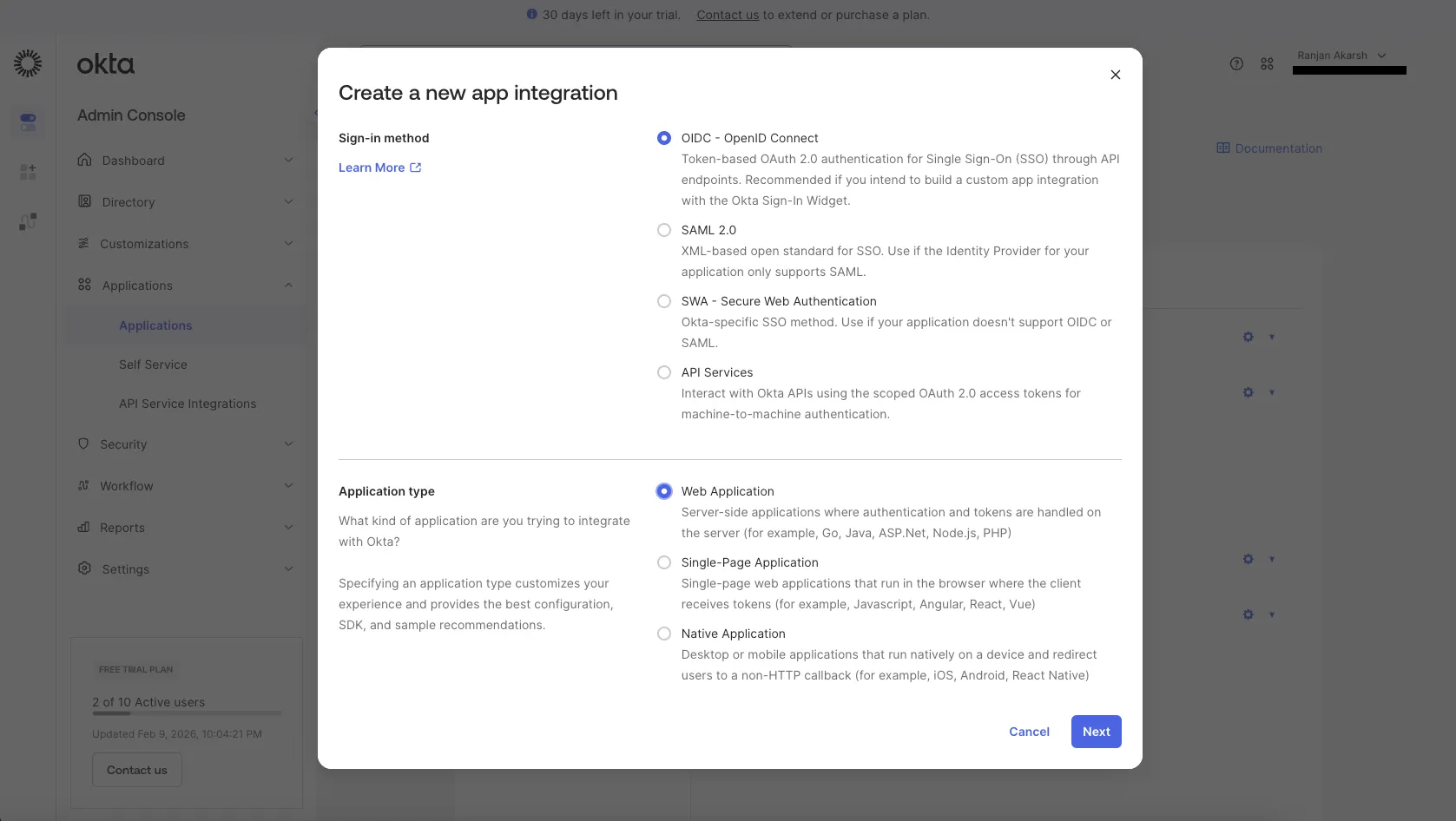
Go to Admin Console → Applications → Create App Integration
Select:
Sign-in method: OIDC – OpenID Connect
Application type: Web Application
Click Next
Step 2: Configure Redirect URLs in Okta
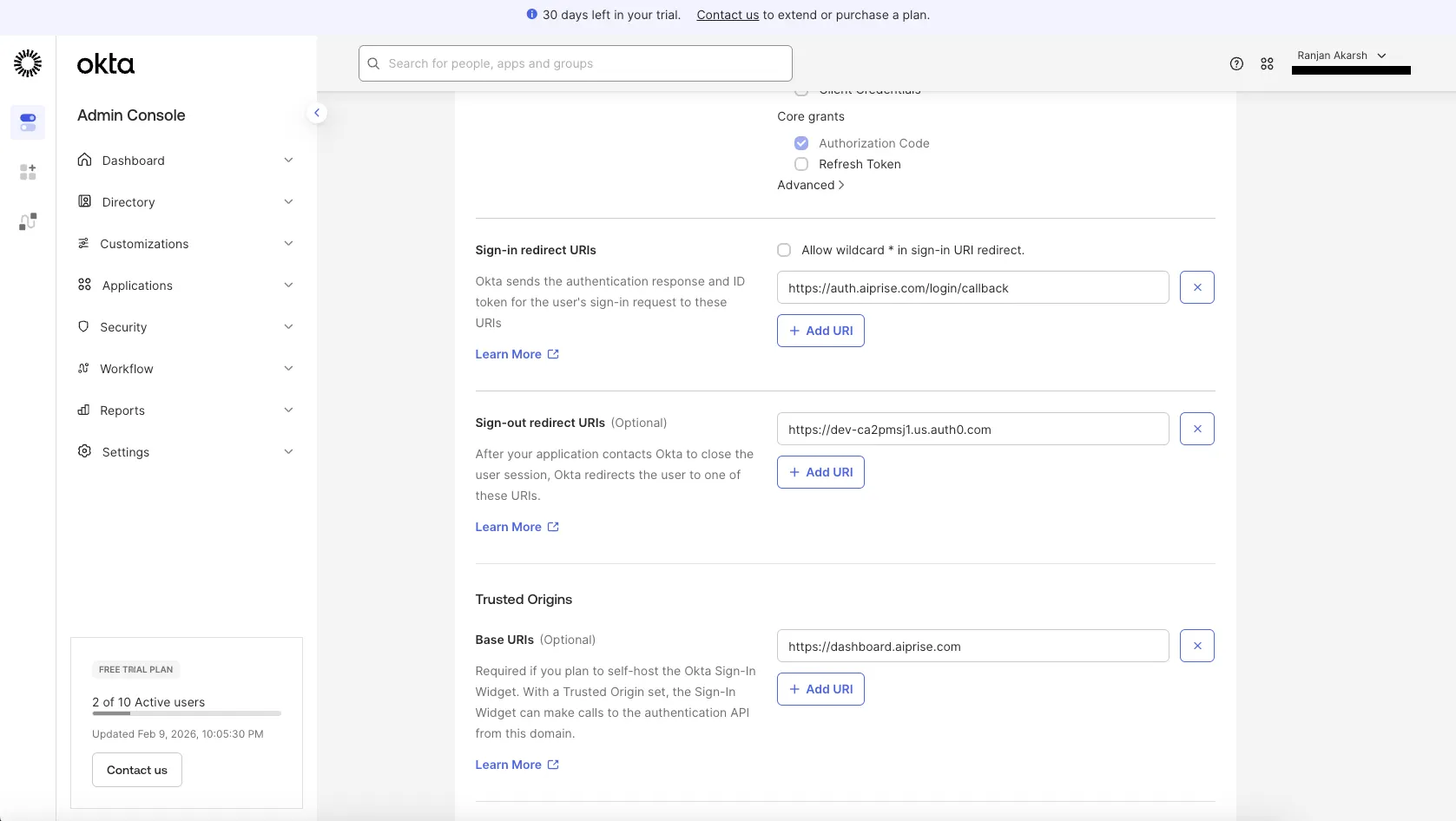
While creating the app on Okta, fill in the below values:
Sign-in redirect URI:
https://auth.aiprise.com/login/callback
Sign-out redirect URI:
https://dev-ca2pmsj1.us.auth0.com
Trusted origin (Base URI):
https://dashboard.aiprise.com
Save the app.
Step 3: Copy Okta Credentials
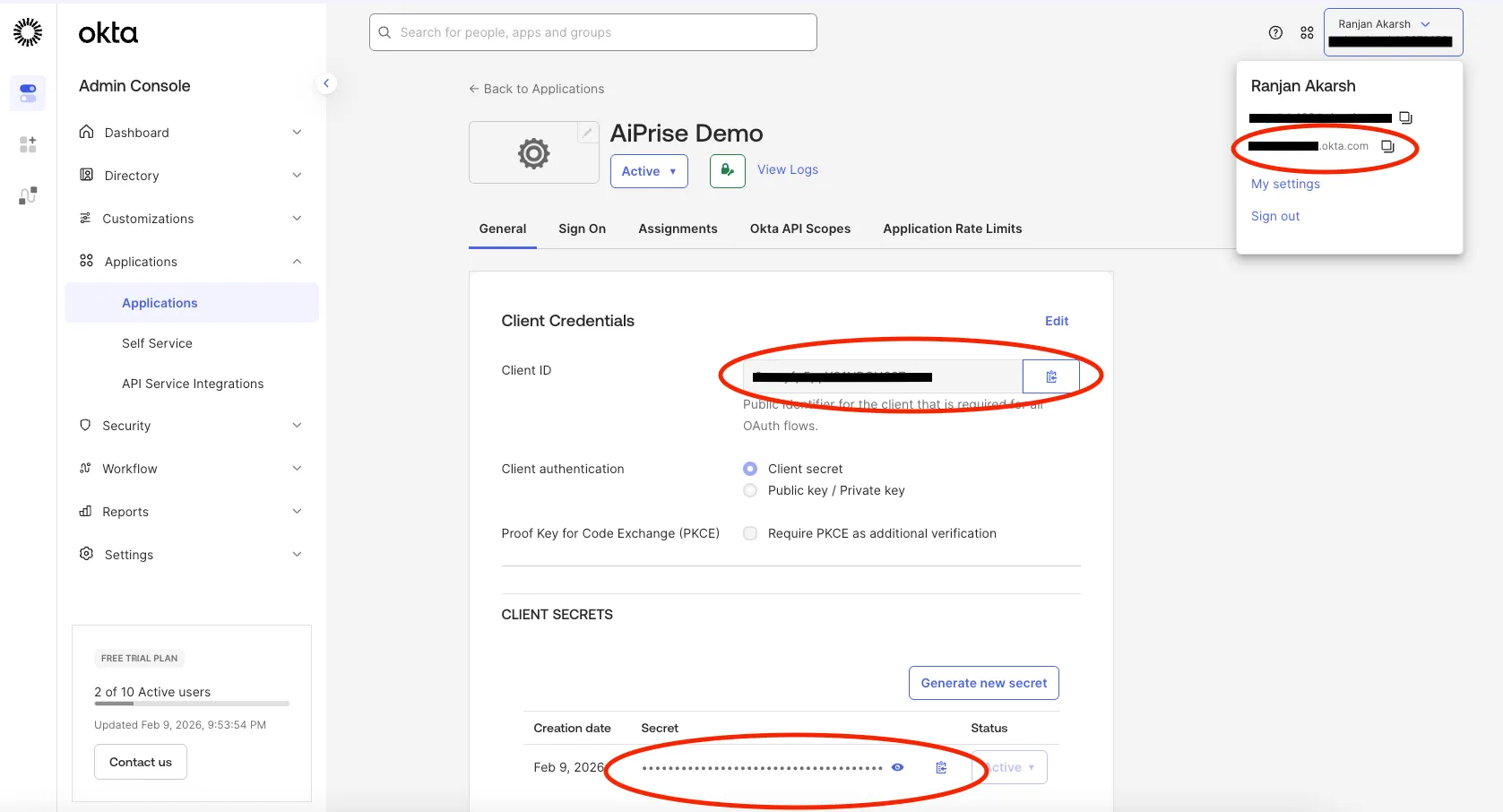
Once the app is created in Okta:
Open your new application
Copy:
Client ID
Client Secret
Okta Domain
Step 4: Enable Okta on AiPrise
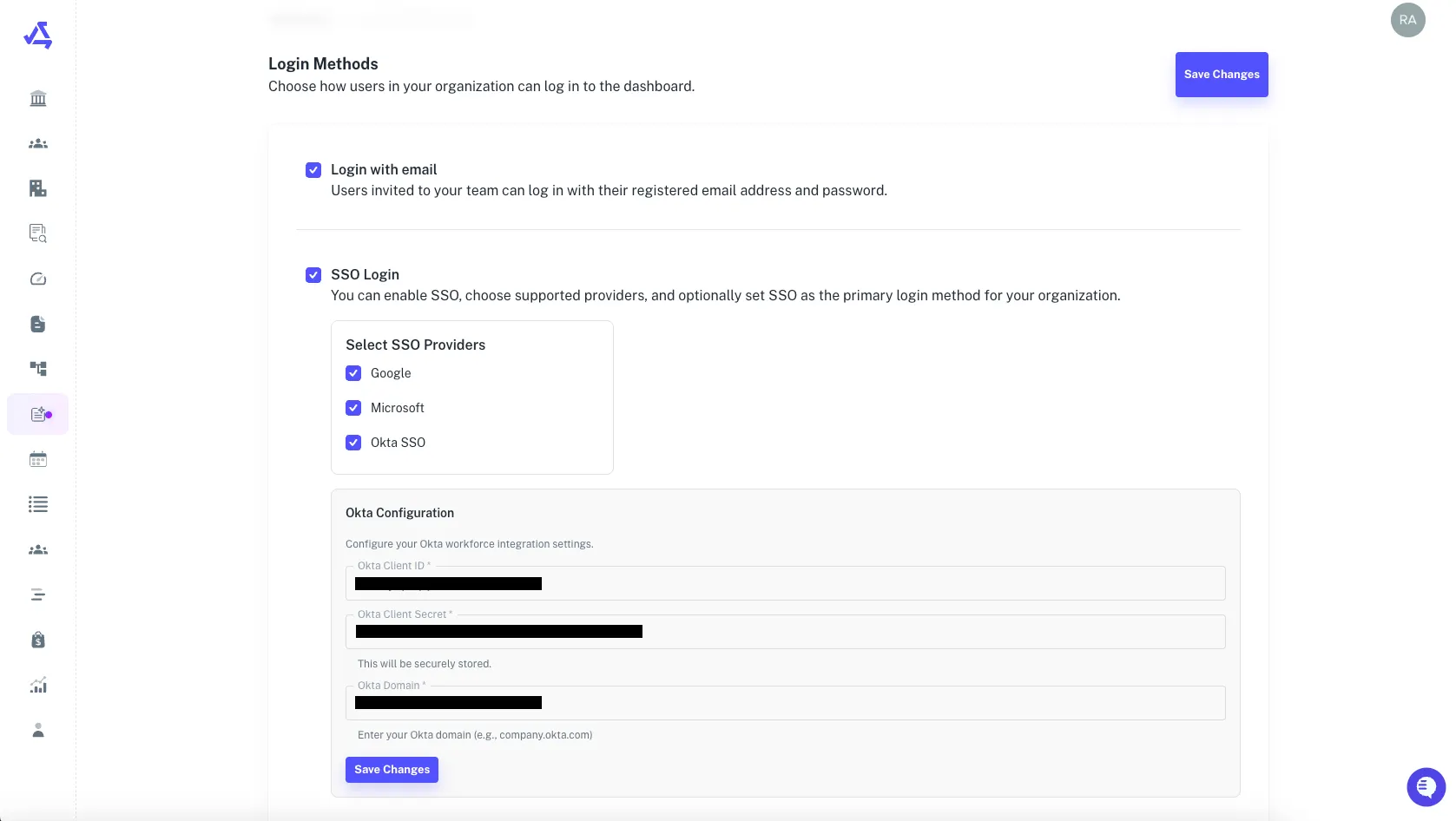
On the AiPrise Dashboard:
Go to Settings → Login Configuration
Enable Okta SSO
Enter:
Client ID
Client Secret
Okta Domain
Click Save Changes
Step 5: Add Users
To allow users to log in via Okta:
On Okta, add the user under Directory / People
On AiPrise, invite the same user using the same email address
The user can now log in using Okta
That’s It 
Your Okta SSO setup is complete. Users can now sign in securely using your organization’s Okta login.