Guide - Okta SAML 2.0 SSO Setup
Last updated: May 25, 2026
You can now set up Okta Single Sign-On with SAML 2.0 directly from your AiPrise dashboard. Everything can be configured securely by your admin in a few minutes.
If you'd prefer to use OpenID Connect instead, see the Okta OIDC setup guide.
Step 1: Get AiPrise Service Provider details
On the AiPrise Dashboard:
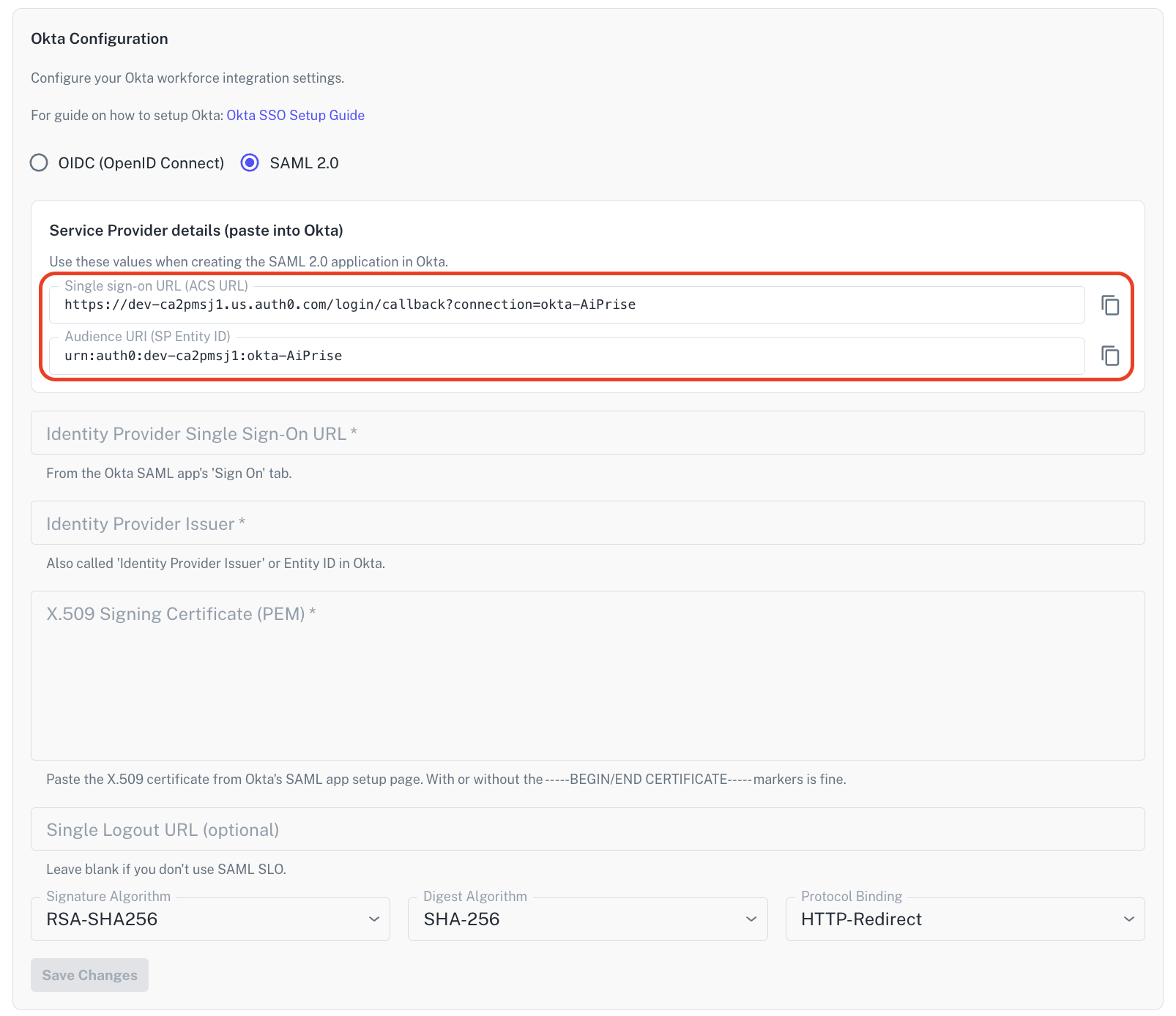
Go to Settings → Login Configuration
Enable Okta SSO and select SAML 2.0 as the protocol
Copy the two values shown under Service Provider details:
Single sign-on URL (ACS URL)
Audience URI (SP Entity ID)
You'll paste these into Okta in the next step. Keep this tab open — you'll come back to it.
Step 2: Create an Okta SAML App
In Okta Admin Console:
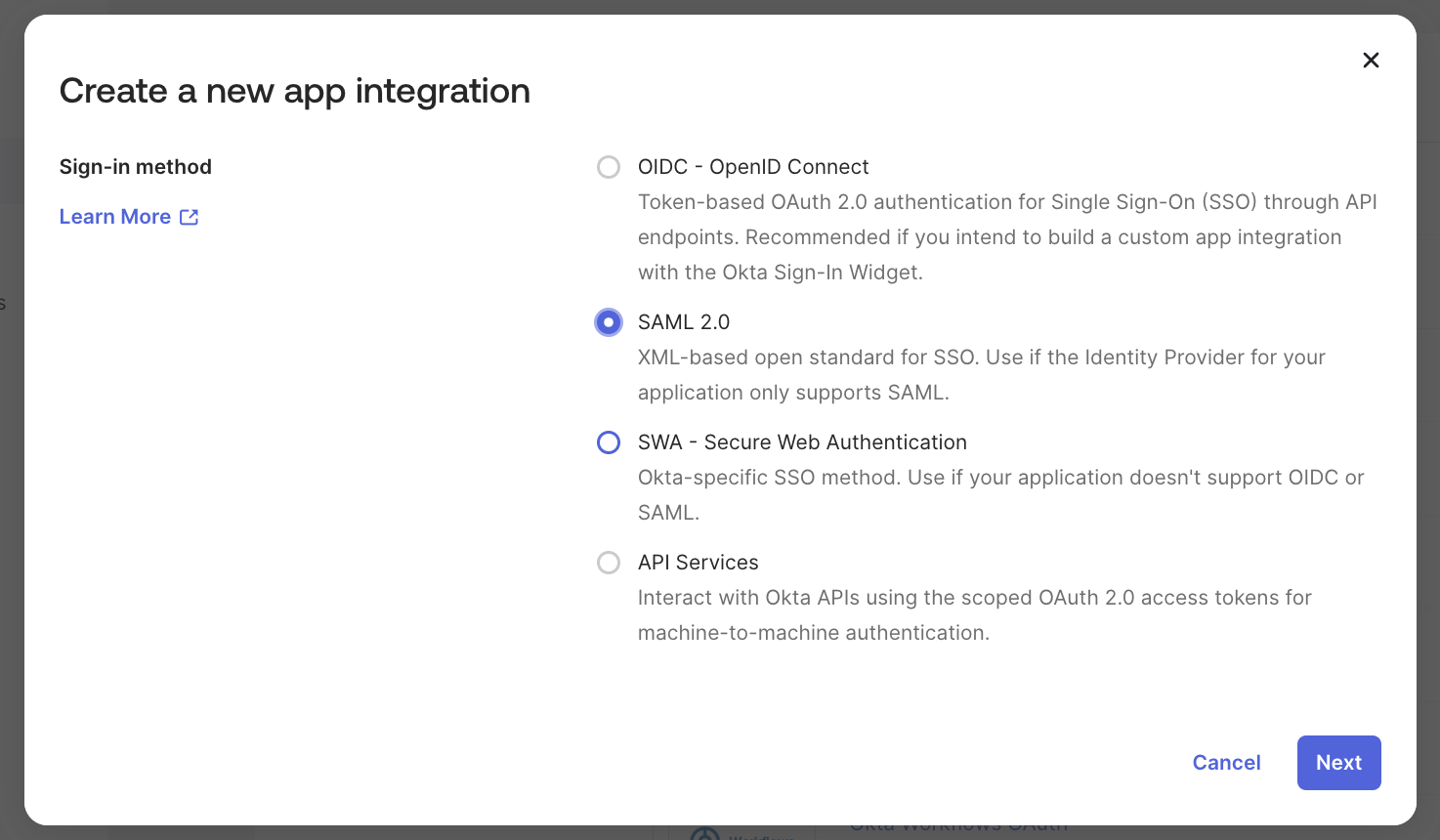
Go to Admin Console → Applications → Create App Integration
Select:
Sign-in method: SAML 2.0
Click Next
Give the app a name (e.g.,
AiPrise) and click Next
Step 3: Configure SAML settings in Okta
On the Configure SAML screen, fill in the values you copied from AiPrise in Step 1:
Single sign-on URL:
<paste the ACS URL from AiPrise>
Audience URI (SP Entity ID):
<paste the Entity ID from AiPrise>
Name ID format:
EmailAddressApplication username:
Email
Leave the remaining fields at their defaults unless your organisation requires otherwise. Click Next, complete the feedback step, and Finish.
Step 4: Copy Okta SAML details
Once the app is created in Okta:
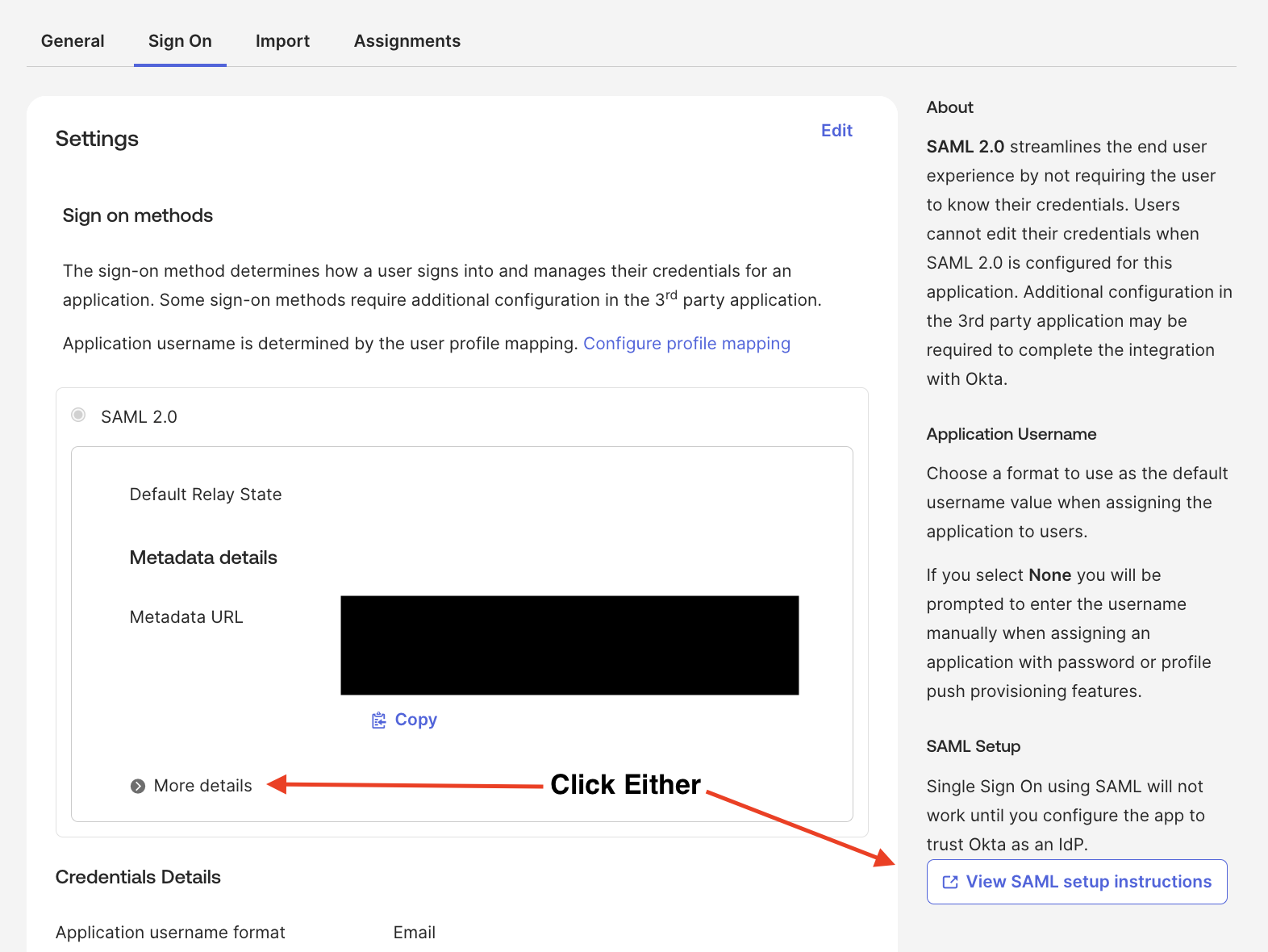
Open the new application and go to the Sign On tab
Click View SAML setup instructions (or More details)
Copy the following values:
Identity Provider Single Sign-On URL
Identity Provider Issuer
X.509 Certificate (the signing certificate)
If your organisation uses Single Logout, also copy the Single Logout URL.
Step 5: Enable Okta SAML on AiPrise
On the AiPrise Dashboard:
Return to Settings → Login Configuration
With SAML 2.0 selected, enter:
Identity Provider Single Sign-On URL
Identity Provider Issuer
X.509 Signing Certificate (paste the PEM block; the
-----BEGIN/END CERTIFICATE-----markers are optional)Single Logout URL (optional)
Leave Signature Algorithm, Digest Algorithm, and Protocol Binding at their defaults (
RSA-SHA256,SHA-256,HTTP-Redirect) unless Okta is configured differentlyClick Save Changes
Step 6: Add Users
To allow users to log in via Okta:
On Okta, assign the user to the application under the app's Assignments tab (or via Directory / People)
On AiPrise, invite the same user using the same email address
The user can now log in using Okta
That's It 
Your Okta SAML 2.0 SSO setup is complete. Users can now sign in securely using your organisation's Okta login.