How do I Enable Native Camera for ID document collection?
Last updated: July 9, 2025
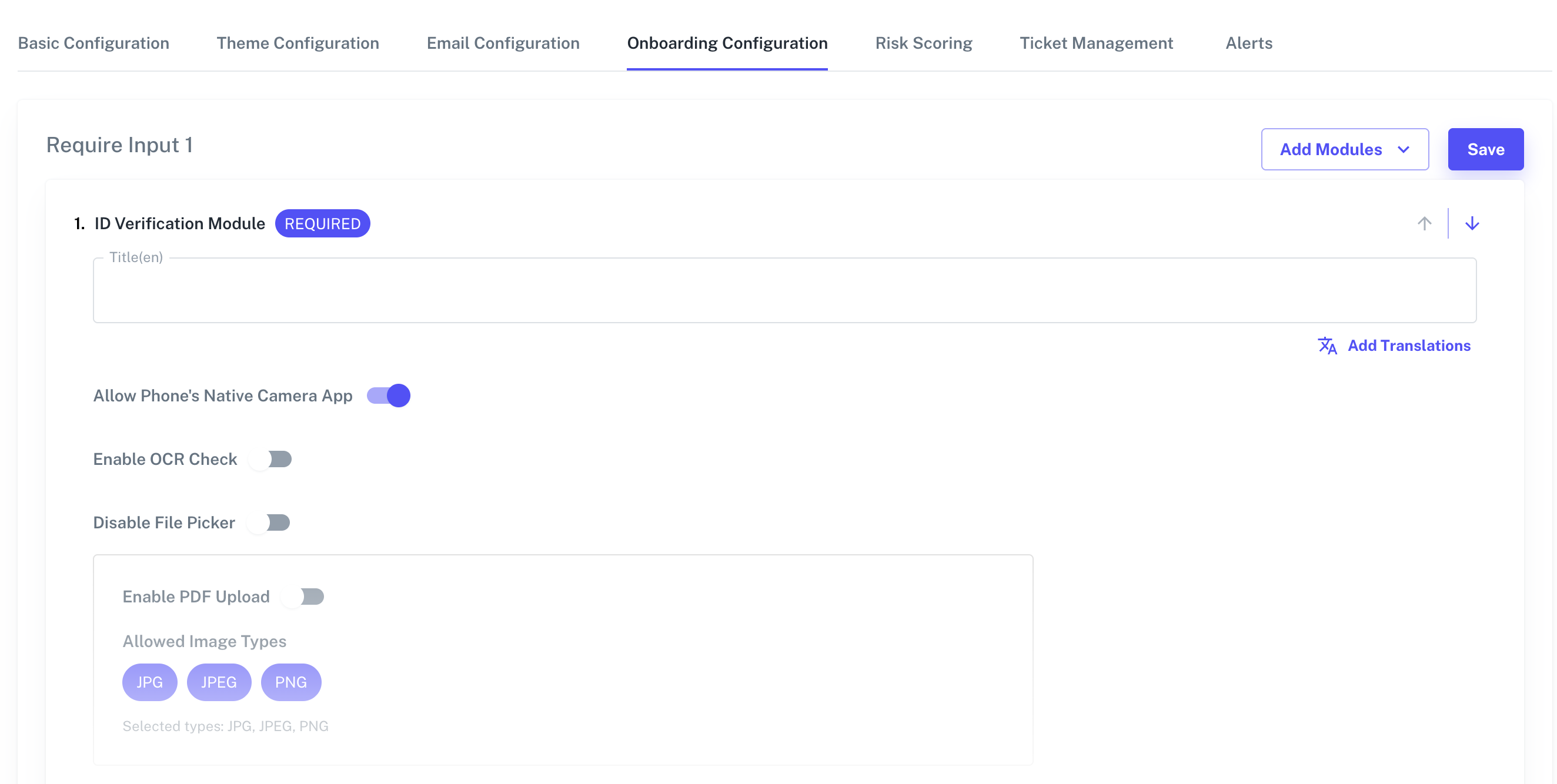
The "Allow Phone’s Native Camera App" setting under your template’s onboarding
configuration enables higher image quality during the document capture step of a KYC session.
What does it do?
When this setting is enabled, users completing KYC are prompted to use their phone’s native/default camera app (e.g., iOS or Android camera) instead of a browser-based or in-app camera library. This results in:
Sharper, clearer images of documents
Better OCR (Optical Character Recognition) accuracy
Higher success rates in verification
Why does this matter?
Some older or low-RAM devices may struggle with the default in-browser camera, resulting in:
Blurry or low-resolution uploads
Poor lighting or focus issues
Failed or delayed verifications
By switching to the native camera, users leverage their phone’s full camera capabilities (autofocus, exposure, stabilisation, etc.).
Limitations to note
Some platforms do not support native camera calls, especially:
Desktop browsers
Older Android devices
In such cases, users will either not be prompted to take a picture or fall back to the in-browser camera if supported.