How to Set Up a Custom Email Domain on AiPrise
Last updated: July 17, 2026
AiPrise allows you to send all system emails — including verification messages and document requests — using your own domain. This ensures better deliverability, improved branding, and a more seamless experience for your users.
Step 1: Open Email Domain Settings
From your AiPrise dashboard:
Go to Settings
Click Product
Scroll down to find Email Domains
The Email Domains section is where you can configure and manage the domains you’d like your emails to be sent from.
Step 2: Add a New Domain
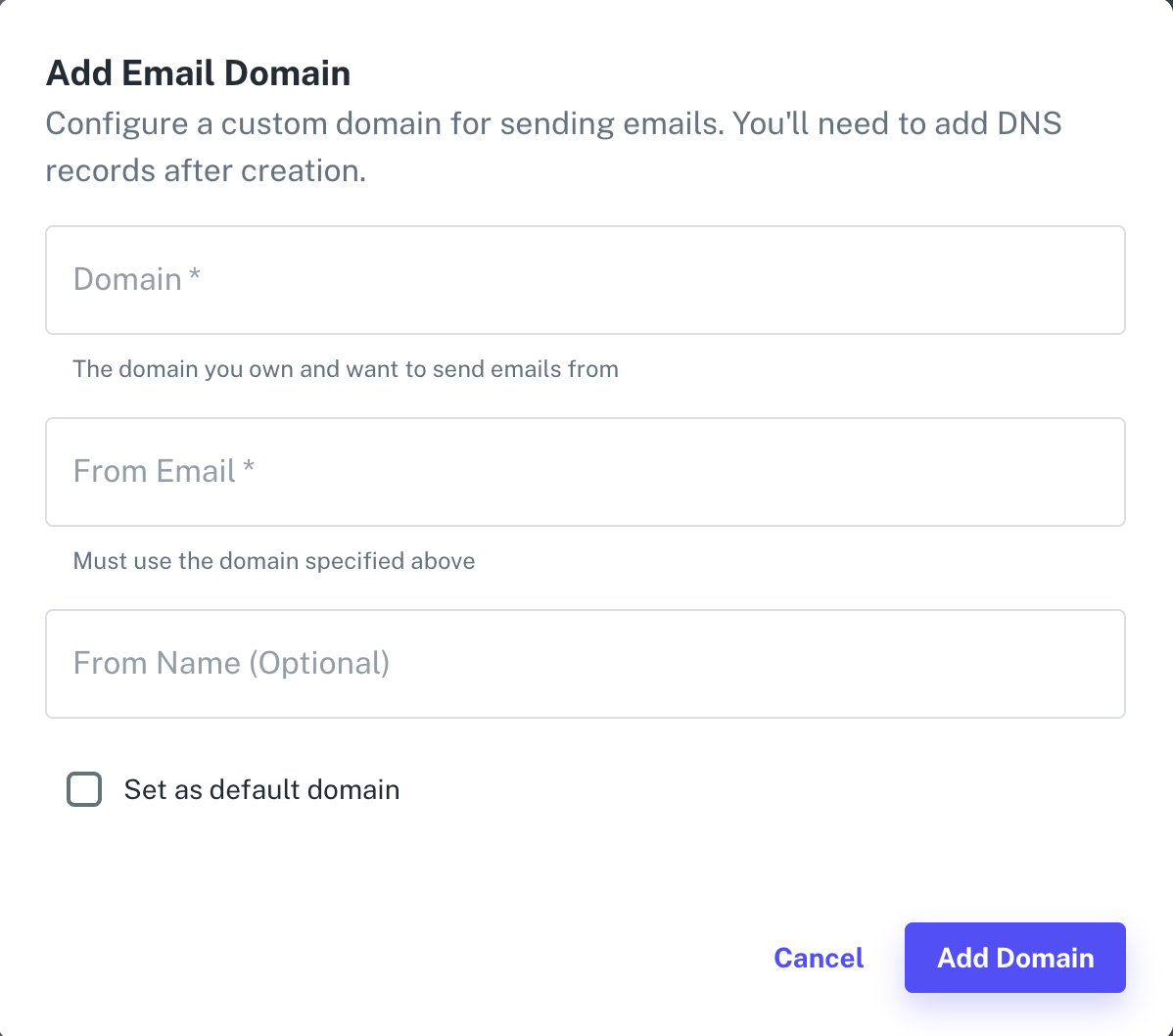
Click Add Domain.
Enter the domain you want AiPrise to send emails from — for example:
aipriseinc.com
Enter the From Email, such as:
support@aipriseinc.com
📌 Important:
The domain of your From Email must match the domain you are configuring.
(Optional) Add a From Name — this is the sender name your users will see.
You can also mark this as your default sending domain.
Click Add Domain to continue.
Your domain will now be added to your AiPrise account, but it still needs verification.
⚙ Step 3: Add DNS Records in Your Domain Registrar
Next, log in to the domain provider where your domain is hosted — for example:
GoDaddy
Cloudflare
Namecheap
Google Domains
Once logged in:
Navigate to your DNS Settings.
Locate the domain you added (e.g.,
aipriseinc.com).Copy the CNAME records shown in AiPrise and paste them into your DNS panel.
Add the required DKIM record as well.
These DNS records authenticate your domain and allow AiPrise to send emails on your behalf and can take upto 48 hours to be verified.