Configuring Warning Codes in AiPrise
Last updated: April 22, 2025
Overview
AiPrise provides flexible control over how warning codes impact verification decisions for both KYC (Know Your Customer) and KYB (Know Your Business) processes. By customizing warning codes, users can override default behaviors to align with their risk tolerance and operational workflows.
This guide walks you through configuring warning codes in AiPrise, allowing you to modify their impact on verification outcomes.
What Are Warning Codes?
Warning codes in AiPrise flag potential risks or anomalies in a verification process. By default, each warning is mapped to a specific action, but you can override these settings based on your organization’s needs.
Each warning code can be configured to:
Approve – Automatically approve the verification despite the warning.
Review – Flag the verification for manual review before proceeding.
Decline – Automatically reject the verification if the warning is triggered.
Not Applicable – Disable the check for this warning code entirely.
List of Warning Codes
View the KYC warning codes: AiPrise KYC Warning Codes
View the KYB warning codes: AiPrise KYB Warning Codes
How to Configure Warning Codes
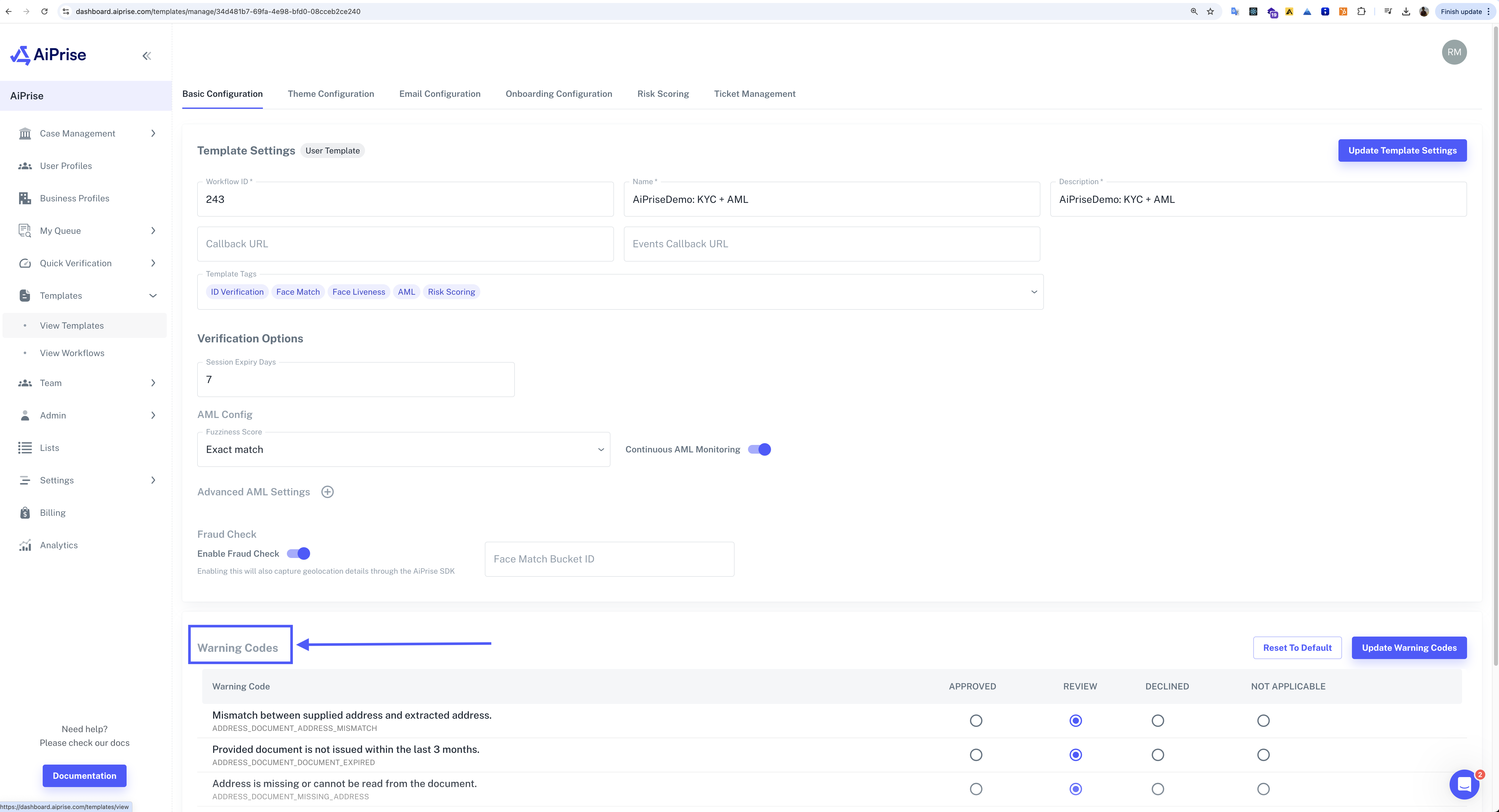
1. Access the Templates Page
Log in to the AiPrise dashboard.
Navigate to the Templates section from the main menu.
2. Select the KYC or KYB Template
Locate the relevant template (e.g., KYC Verification or KYB Verification).
Click on Settings to access warning code configurations.
3. Modify Warning Code Behaviour
Scroll down to the Warnings Configuration section.
You will see a list of all possible warning codes that AiPrise can trigger.
For each warning, select the appropriate action:
Approve – Approves the verification despite the warning.
Review – Sends the verification for manual review.
Decline – Rejects the verification if this warning is triggered.
Not Applicable – Disables this warning check.
4. Example Use Case
For example, if you want to change how AiPrise handles the "Person Face image attempted to onboard before" warning:
Locate this warning code.
If it is currently set to Approve, change it to Review if you want manual intervention before approval.
5. Save and Apply Changes
Once you’ve configured the warning codes, scroll back to the top.
Click "Update Warning Codes" to save and apply your changes.
Summary
AiPrise provides customizable warning code configurations to help you manage verification processes effectively. By following these steps, you can tailor warning responses to match your organization's compliance requirements and risk management policies.
For a full list of warning codes, refer to: