Decisioning — FAQ
Last updated: October 13, 2026
What does a decision mean?
Decisioning is how we assign a result to your session and business profiles: Approved, In Review, or Declined. You can either decide the outcome of cases manually or add conditions for assigning an automatic decision on the user or business. You control the rules that are set up on the decisioning page for each template; AiPrise applies them consistently in every case.
What results can a session or profile have?
We have 3 final results: Approved, In Review, Declined. You may also see Unknown, which is not a final result: it means checks are still running, pending, or weren't submitted.
Deactivated means you offboarded the business and monitoring on it has stopped.
How does a business or user get its result?
You choose one of two modes in Decisioning settings:
Manual: every session/profile goes to manual review, and your team decides.
Automatic: the business or user’s decision follows the results of its sections, including the cases of related persons and companies added during onboarding.
How is a session decided?
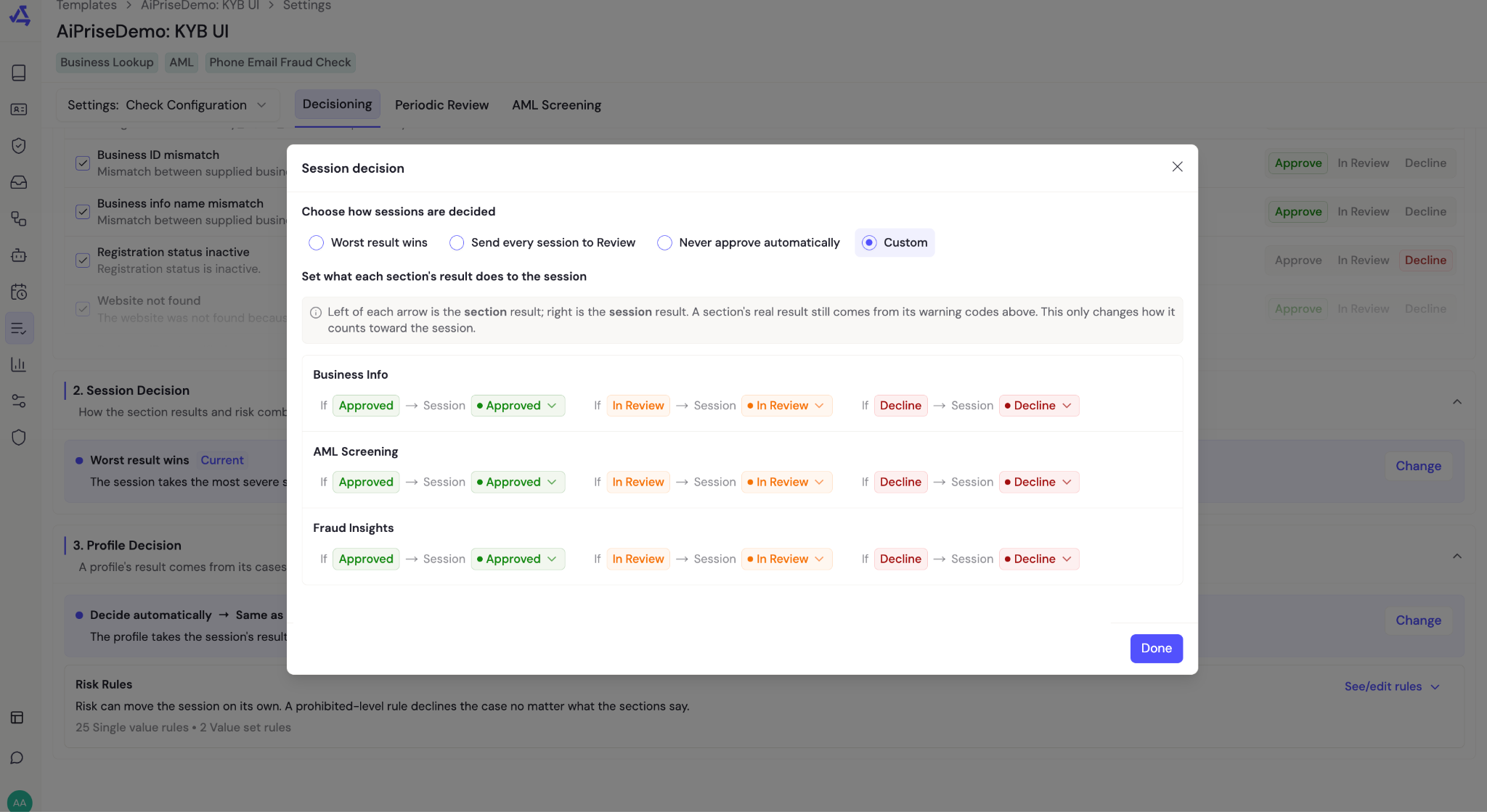
Every section of the case (Business Information, AML, Documents, ID Information, Website, and so on) first gets its own result from the warnings found there and how you've configured those warnings. Then the session result is decided from the section results, in one of three ways:
The worst result wins (default). If any section is Declined, the case is Declined. Otherwise, if any section is In Review, the case is In Review. Only a case with every section approved has an overall Approved result.
Everything to review. Ignore section results and send every case to your team for manual review, even clean ones.
Custom logic for session. Decide how each section's result affects the case yourself, including giving a section the power to override everything else. For example: if AML is Approved, approve the whole session regardless of other sections.
How does a profile result work?
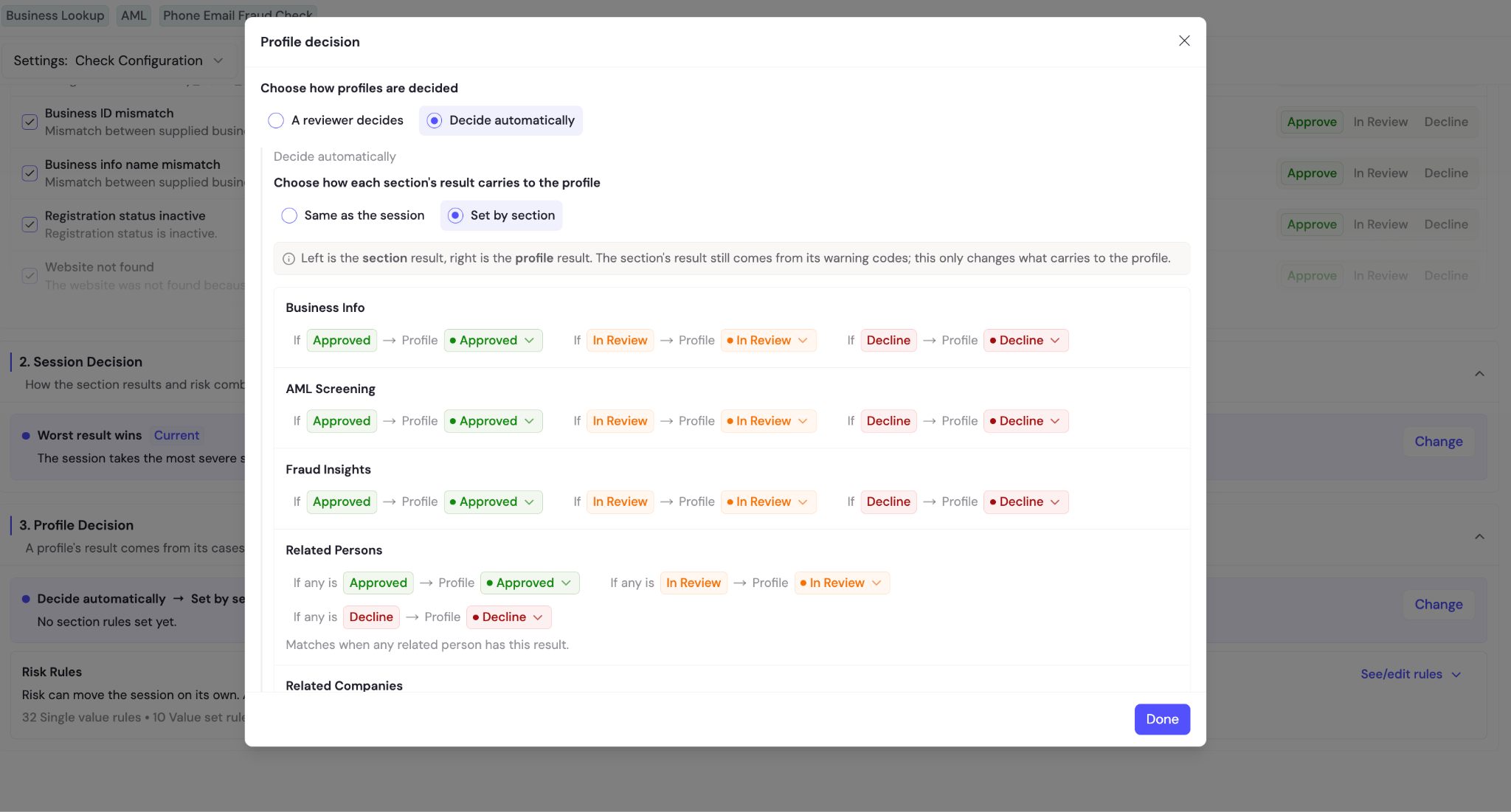
A profile result can be decided in 3 ways
1. You can send all cases to manual review
2. You can decide automatically based on session result so the profile result is the same as session result
3. You can decide custom section overrides for profile as well - eg: if any profile section has related persons that are declined, the business profile stays in decline
What do warning codes do?
Each warning code maps to a result (Approve, In Review, Decline) for its section. When that warning is found, the section takes that result. Warnings only affect the section they belong to; the case result comes from combining sections.
I set my warnings strictly, but a case with no warnings was approved. Why?
Warnings only apply when they're actually found. A clean case triggers no warnings, so nothing pushes it to review. If you want every case reviewed by your team regardless of warnings, turn on "Send every case to Review" in your template's Decisioning settings.
How do I send every case to manual review?
One toggle: Decisioning settings → "Send every case to Review." Every case then goes to your review queue, even clean ones. No support ticket needed.
Can I change what a section result does to the case?
Yes. By default the worst section result wins. If you need different behavior (for example, a declined section should send the case to review instead of declining it), open the advanced mapping in Decisioning settings and set, per section, what each of its results does to the case.
How does risk scoring fit in?
Risk scoring is one more section of the case. Your risk rules and score thresholds decide the risk section's result, and it then counts toward the case result like any other section. You configure risk rules in the risk settings; no separate setup is needed for them to count.
When does automatic decisioning run?
The decision is run automatically when the onboarding form sessions are completed.
How you onboard | When the profile is decided |
AiPrise onboarding flow (SDK) | Automatically, as soon as all onboarding checks, including related persons and companies, finish |
API or dashboard | When you click Make Decision on the profile (or call the API), since only you know when you've finished adding related entities |
What is Make Decision?
A button on the business profile (and an API endpoint) that tells AiPrise that all the checks are performed and we can evaluate this profile now. AiPrise then computes the profile result from the latest result of each check.
I added a new UBO or re-ran a check after the profile was decided. What happens?
The profile result does not change on its own. When you're ready, click Make Decision again and the profile is re-evaluated using the latest result of each check, so a re-run that resolves an issue counts in your favor.
Do related persons and companies affect the profile result?
Yes, under automatic decisioning. If a related person's or related company's check is Declined or In Review, the business profile reflects it.
What if some checks are still running?
Automatic decisioning waits. A profile is not decided while any of its checks are running, pending, or failed; it stays Unknown or keeps its current result until everything completes.
Can automatic decisioning overrule my analyst's decision?
No. A decision made by your team is never changed by automation. Only a person explicitly re-running Make Decision can change it.
What does periodic review do to the result?
When a periodic review comes due, the profile is sent back to In Review for your team to look at. It doesn't approve or decline anything on its own.
Where do I configure all of this?
In your template's Decisioning tab: warning code results, the "send every case to Review" toggle, the advanced section mapping, and the profile decision mode. Your current setup is summarized there in one plain-English sentence, and the same explanation appears on each profile so you always know why it has the result it has.
Do I need to contact support to change decisioning behavior?
No, you can change the decisioning logic anytime of your template via the Decisioning tab on the template.